
AI Prompts for Midjourney LinkedIn Headshot Prompts
20 of the best prompts for Midjourney LinkedIn headshot prompts, step by step across 4 stages. Works with ChatGPT, Claude, and Gemini.
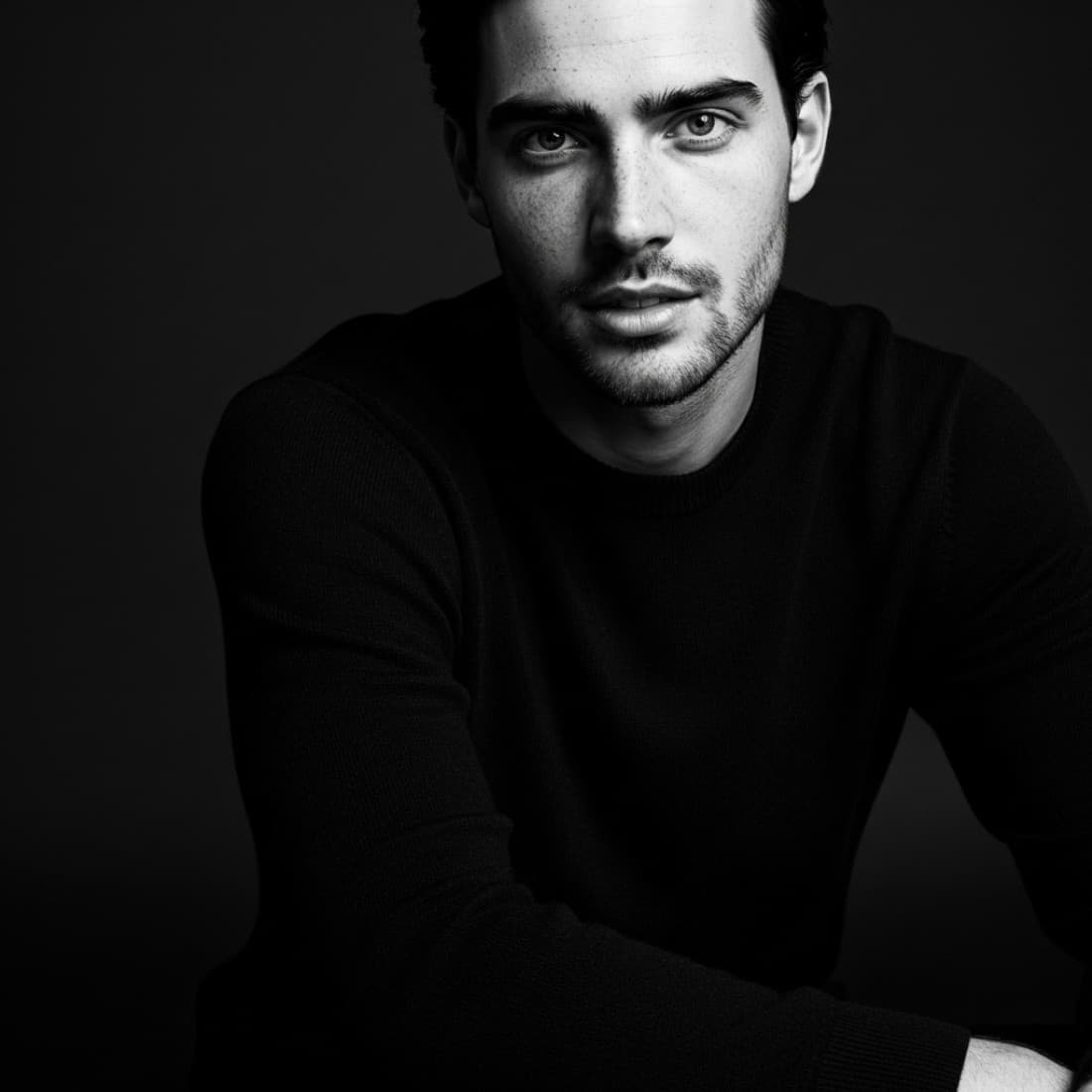
AI Prompts for Midjourney LinkedIn Headshot Prompts
20 of the best prompts for Midjourney LinkedIn headshot prompts, step by step across 4 stages. Works with ChatGPT, Claude, and Gemini.
Published July 14, 2026 · Updated July 15, 2026
Midjourney produces some of the most photorealistic portrait results of any AI image tool when prompted correctly. For LinkedIn headshots, that means knowing exactly how to specify lighting, framing, realism level, and professional presentation to get a result that looks like it came from a professional photographer, not a stock photo library.
Write effective Midjourney headshot prompts
Midjourney responds to specific, layered prompts. These templates give you the structure that produces professional results.
Base prompt for a professional headshot
Use this Midjourney prompt structure: "professional LinkedIn headshot of a [MAN/WOMAN], [AGE RANGE], wearing [ATTIRE DESCRIPTION], [BACKGROUND: PLAIN GREY BACKGROUND / SOFT BOKEH OFFICE BACKGROUND / OUTDOOR NATURAL LIGHT BACKGROUND], [LIGHTING: SOFT STUDIO LIGHTING / NATURAL WINDOW LIGHT / REMBRANDT LIGHTING], confident smile, direct eye contact, head and shoulders framing, sharp focus on face, photorealistic, 85mm portrait lens, professional photography, --ar 1:1 --style raw --v 7"
Specify lighting for a LinkedIn headshot
Add precise lighting instructions to your Midjourney prompt for a professional result: For a classic studio look: "butterfly lighting, softbox key light, fill light from opposite side, subtle hair light". For a natural look: "golden hour natural light, soft window diffusion, slight catch light in eyes". For a modern corporate look: "clean even lighting, no harsh shadows, professional color grading". Append your chosen lighting description to your base headshot prompt.
Control the background precisely
Midjourney background prompts for LinkedIn headshots: Plain professional: "solid charcoal grey background, no texture, evenly lit". Office context: "blurred modern office environment, soft bokeh, neutral tones". Outdoor professional: "outdoor natural setting, green bokeh, soft natural light". Abstract modern: "subtle gradient background, dark navy to charcoal, professional". Add these to your prompt after describing the person and attire.
Get the expression right
Expression control prompts for Midjourney headshots: Confident approachable: "genuine confident smile, relaxed expression, warm eyes, direct gaze". Authoritative neutral: "composed neutral expression, strong eye contact, slight jaw tension, no forced smile". Warm professional: "genuine smile reaching eyes, relaxed shoulders, engaged expression". For most LinkedIn headshots, use "genuine confident smile" over "posed smile" to avoid the stock-photo look.
Add professional attire description
Attire prompts that translate well in Midjourney: Formal: "charcoal suit, white dress shirt, dark tie, visible lapel". Business casual: "navy blazer, white or light blue open-collar shirt, no tie". Creative professional: "dark turtleneck or quality t-shirt, no jacket, clean and modern". Tech professional: "dark hoodie or fitted crew neck, clean, modern tech company aesthetic". Include fabric texture hints like "fine wool" or "crisp cotton" for quality signals.
Refine and iterate
Midjourney rarely produces the perfect result on the first try. These prompts help you push toward the final image.
Use variations to test options
After generating your initial Midjourney headshot grid, use the V buttons to create variations. Then compare: which variation has the most natural expression? Which has the best lighting on the face? Which looks most like a real person rather than AI-generated? Use these as your quality checkpoints before selecting a final image. Describe what you want to change and reroll only that element.
Upscale and enhance the best result
Once you have a good base headshot from Midjourney, use U to upscale. Then in Midjourney editor or a separate upscaling tool, check for: AI artifacts around hair edges, skin texture that looks plastic or over-smoothed, eyes that look slightly off (asymmetrical catch lights or odd pupil shape). Use inpainting or a face-enhancement tool to fix specific problem areas without regenerating the full image.
Fix common Midjourney portrait problems
Common issues in Midjourney headshots and how to fix them: Odd hands visible: add "head and shoulders only, no hands visible" to your prompt. Ears look strange: add "natural ear shape, realistic anatomy" and use higher realism settings. Background bleeds into hair: add "clean hair edge separation, defined hairline". Eyes look off: add "natural symmetric eyes, realistic iris detail, genuine catch lights" and regenerate.
Increase photorealism
To make your Midjourney headshot look less AI-generated and more like a real photograph: Add "--style raw" to remove artistic stylization. Add "photorealistic, real person, candid professional photography" to the prompt. Add "slight film grain, natural skin pores, realistic hair strands" for texture. Avoid prompts like "perfect skin" or "flawless" which trigger the over-smoothed AI look. Lower aesthetic polish slightly for higher realism.
Match a reference style
If you have a LinkedIn headshot you admire and want to match its style in Midjourney: Describe what makes it work: "clean dark background, even butterfly lighting, confident neutral expression, formal suit, tight head and shoulders crop". Add "--sref [URL]" if you have a style reference image. Include "in the style of professional corporate photography" to anchor the aesthetic. Iterate from there rather than trying to get a perfect result in one prompt.
Optimize for LinkedIn specifically
LinkedIn has specific technical requirements and viewing contexts that affect which headshot works best.
Generate for LinkedIn crop requirements
LinkedIn profile photos display in a 1:1 square crop. Generate your Midjourney headshot with "--ar 1:1" and ensure: the face fills at least 60 percent of the frame, eyes are in the upper half, there is space above the head, the shoulders anchor the bottom. Also generate a version with "--ar 4:5" for the slightly taller LinkedIn background banner crop if needed.
Test at thumbnail size
LinkedIn profile photos appear at very small sizes in search results, connection requests, and comments. Before finalizing your Midjourney headshot, check it works at 60x60 pixels. Requirements at thumbnail: face clearly readable, expression visible, no distracting background elements. If the photo looks muddy or unclear at small size, regenerate with stronger contrast, lighter background, or tighter face framing.
Generate industry-matched variants
Different industries have distinct visual norms on LinkedIn. Generate headshot variants matched to: Finance/legal: "formal suit, dark background, authoritative expression". Tech/startup: "smart casual, modern background, approachable expression". Creative/marketing: "stylish professional attire, slightly warmer background, expressive but professional look". Healthcare: "professional medical context, white coat or smart attire, trust-focused expression". Use the variant that matches your field.
Align with your personal brand color palette
If you have a defined personal brand with specific colors, align your LinkedIn headshot. Generate Midjourney variants where the background or attire incorporates your brand colors without looking staged. For a navy blue brand: dark navy background or navy suit. For a clean white brand: white or light background with minimal attire. Subtle color alignment across headshot, banner image, and content builds visual recognition.
Create a headshot and banner set
Generate a coordinated LinkedIn visual set using Midjourney: 1) Headshot (1:1, tight portrait), 2) LinkedIn banner image (8:1 ratio, professional background, no face, matching color palette). Keep both visually cohesive: same tonal range, complementary colors, consistent professional level. The banner should feel like the environment the person in the headshot belongs in.
Polish and prepare for use
Final checks and optimizations before uploading your Midjourney headshot to LinkedIn.
Get a second opinion on two finalists
I have two Midjourney headshots I am deciding between. Headshot A: [DESCRIBE IN DETAIL: EXPRESSION, ATTIRE, BACKGROUND, OVERALL VIBE]. Headshot B: [DESCRIBE]. My LinkedIn goal is [GOAL: JOB SEARCH, THOUGHT LEADERSHIP, CLIENT DEVELOPMENT, RECRUITING]. Based on that goal, which headshot is likely to perform better? What specific visual elements drive your recommendation?
Compare to top professionals in your field
Look at the LinkedIn headshots of top professionals in [INDUSTRY/ROLE]. Using Midjourney, generate a headshot that visually matches that professional standard. What attire, background, expression, and lighting do top [INDUSTRY] professionals use? Generate a version that would look at home on the profile of someone at the top of that field.
Prepare the file for upload
Before uploading your Midjourney headshot to LinkedIn: ensure the file is JPEG or PNG under 8MB. Crop to 400x400 pixels minimum. Check the image at full size for any AI artifacts to clean up. Check at 100x100 pixels for thumbnail clarity. LinkedIn recommends a minimum 400x400 resolution; higher is fine. Use lossless export if saving from an editing tool to avoid compression artifacts.
Track headshot performance on LinkedIn
After updating your LinkedIn headshot, monitor: profile view count change in the first 30 days, connection request acceptance rate if you are actively networking, whether recruiters or target contacts start engaging more. If the new headshot does not improve engagement after 30 days, generate a new variant and test again. Treat your headshot as a variable to optimize, not a permanent decision.
Plan your next headshot update
My Midjourney LinkedIn headshot is now live. Set a reminder to evaluate it in [3/6/12 MONTHS]. At that point, assess: does the photo still look like me? Has my title or company changed significantly? Does it still match the visual standard of my peers? If any answer is yes-it-needs-updating, return to stage 1 of this process and generate a new set of concepts to test.
Frequently asked questions
Does Midjourney produce good enough results for a LinkedIn headshot?+
Yes, when prompted correctly. Midjourney v7 produces photorealistic portraits that are difficult to distinguish from professional photography. The keys are specifying realistic style settings (--style raw), natural expressions, and professional lighting. The most common failure mode is over-smoothed skin or slightly off eyes, which you can fix with inpainting or a face enhancement tool.
What Midjourney version should I use for headshots?+
Use the latest available version (v7 as of mid-2026) with "--style raw" to maximize photorealism. Avoid older aesthetic presets that add artistic stylization. For portraits specifically, the raw style flag produces the most natural-looking skin texture, hair, and lighting.
Is it ethical to use a Midjourney headshot on LinkedIn?+
It depends on your intent. Using AI to generate a headshot that accurately represents your real appearance is generally acceptable, the same way using professional lighting or retouching is accepted. Using AI to generate a photo of a different person or significantly alter your appearance in a misleading way crosses into misrepresentation. Use AI as a tool to get a great photo of yourself, not to create a different version of yourself.
Other prompt packages you might like
AI Prompts for ChatGPT Images Prompts for Professional Headshots
20 ChatGPT Images prompts for professional headshots, LinkedIn portraits, corporate headshots, creative professional shots, and casual professional photos written in the conversational style that works best with GPT Image 2..
See prompts
AI Prompts for AI LinkedIn Headshot Prompts for Men
Use AI image tools to generate, refine, and test LinkedIn headshots that make men look approachable, credible, and right for their industry..
See promptsAI Prompts for AI Prompts for Women's LinkedIn Headshots
20 image generation prompts for women's professional LinkedIn headshots, corporate, creative, tech, and casual professional styles that project confidence and competence..
See prompts